Tails OS: Understand the USB Workflow Before Installing
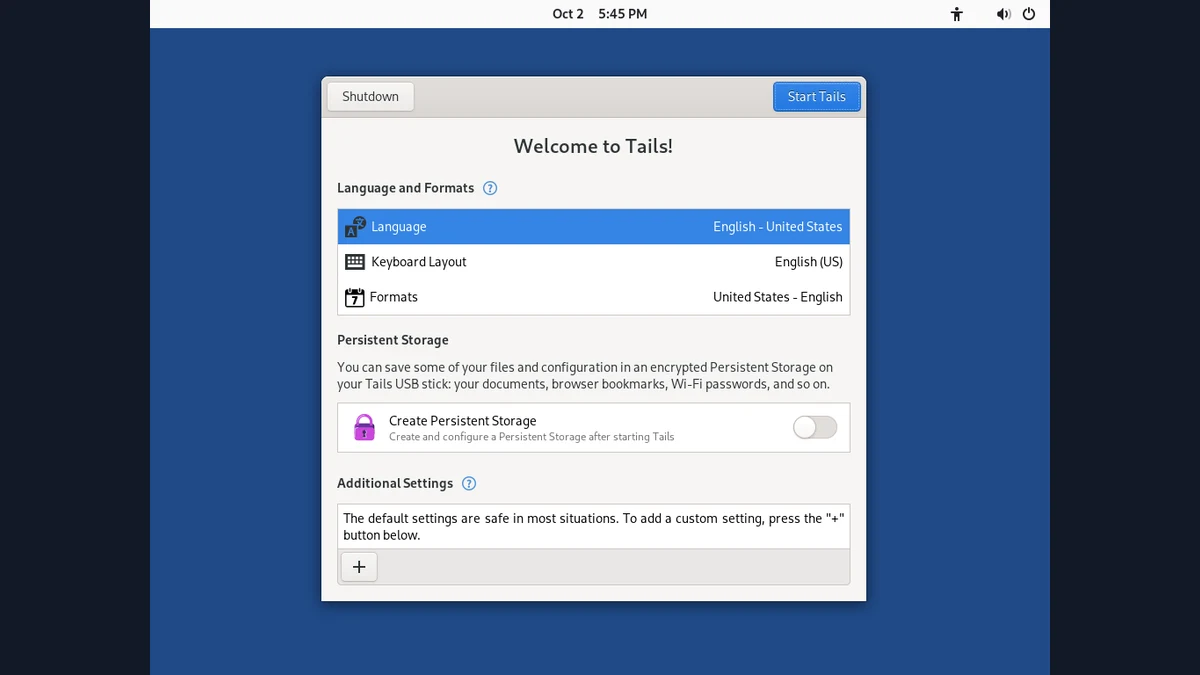
Tails OS starts from a USB drive and provides a separate operating-system environment designed for privacy. Its amnesic behavior limits what a normal session retains by default, while optional encrypted Persistent Storage can deliberately keep selected information. That combination is useful only when you understand what is temporary, what is saved and what the device can still expose. Tails cannot make compromised hardware trustworthy or erase network records held elsewhere. Before installing, protect the USB's existing data and follow the current official installation instructions for your computer.
What Tails OS Changes Compared with Tor Browser
Tor Browser is an application running inside an operating system. Tails provides an operating-system environment with a privacy-oriented configuration and network controls. Starting Tails therefore changes more of the working environment than opening another browser window.
The distinction does not mean that Tails makes every action anonymous. A signed-in account still identifies its user to the provider, and information entered into a message remains visible to the recipient. A privacy-focused system cannot remove those disclosures after the fact.
For a hypothetical person borrowing a compatible computer, Tails may provide a separate working environment from the installed system. However, the person still needs to consider whether the hardware is trustworthy and whether using that computer is appropriate for the task.
This is the practical Tails vs Tor Browser comparison: one changes the operating environment, while the other changes the browser and its connection within an existing environment. Choose based on that scope. Do not treat booting from USB as evidence that firmware, attached devices or a physical observer have become harmless.
Prepare the Download and the USB Drive
Use the Tails project's official installation route for the computer and operating system you are using. That route provides the current download, verification process and installation steps. Screenshots or filenames in an older article may no longer match the supported workflow.
Installation can overwrite the selected USB drive. Back up files you need before proceeding, and confirm the target device carefully. A hypothetical user with two external drives connected should identify the intended USB by its actual device information, rather than clicking the first item in a list.
Verification and installation answer different questions. Verification helps establish that the downloaded image is the intended one; selecting the correct target helps avoid writing it over unrelated data. Neither step substitutes for the other.
Also check the project's compatibility and hardware guidance before expecting a particular computer to start Tails. A failed boot is not proof that the download is malicious, and a successful boot is not proof that the hardware is uncompromised. Treat each result as information about the specific step you performed, then consult the official troubleshooting guidance if necessary.
Booting Tails OS on USB and Reviewing the Session
Follow the official instructions for starting your computer from the prepared USB. The required boot process varies by hardware, so a general guide should not invent one key or firmware setting that supposedly works everywhere. Use the installation documentation for the relevant device.
The Tails Welcome Screen lets you review settings before beginning the session. Read the meaning of the options you intend to change. A setting chosen to make a particular task convenient may affect what remains available or how the session behaves.
In a hypothetical first run, keep the task simple: start the system, confirm the expected environment and read the connection guidance. Avoid moving sensitive documents into an unfamiliar setup before you understand where they will be stored and which applications will handle them.
This is also a good moment to distinguish a startup problem from a network problem. Reaching the desktop does not establish that Tor is connected, and a connected browser does not establish that another task is safe. Verify each part of the intended workflow separately rather than treating the first successful screen as completion of the setup.
Tails Persistent Storage Is an Explicit Choice
An amnesic session and saved working data serve different needs. Tails Persistent Storage is an optional encrypted area that can retain selected information across sessions. Enabling it means that some information is deliberately kept; it should not be described as a session in which everything disappears.
Choose what you need to preserve rather than saving every file by habit. For a hypothetical writing task, that might mean retaining the draft while keeping unrelated downloads out of the persistent area. Follow the official controls for the categories of information you decide to keep.
Encryption protects stored data under particular conditions, but it does not make an active session immune to compromise. Information available to you while the storage is open can still be relevant to malicious software, an untrusted device or someone with access to the session.
Keep an appropriate backup of important work using a process suited to its sensitivity. Persistent Storage is not the same as a backup, and a USB drive can fail or be lost. Decide both what should survive shutdown and how you would recover legitimate work without creating unnecessary additional copies.
The Limits in Tails Documentation Matter
Tails documentation warns that the system cannot protect you from every hardware or firmware compromise. This matters when choosing a computer: starting a different operating system does not prove that the underlying device is trustworthy.
The documentation also distinguishes local amnesic behavior from observation of the network. A third party may retain information about connections or receive identifying content you send. Shutting down Tails cannot erase those external records.
Persistent Storage and manually accessed storage devices create further exceptions to a simple no-traces description. A hypothetical user who copies a document to another disk has intentionally placed it outside a purely temporary session. The document does not disappear from that disk just because Tails shuts down.
Tails also documents the Unsafe Browser as an exception used for situations such as captive portals. It does not provide anonymous browsing and should not be treated as an alternative privacy browser. These separate limits explain why the correct claim is amnesia by default within a defined workflow, rather than an absolute forensic guarantee about every device, network and file involved.
Plan a Complete Session Before Sensitive Work
A useful Tails session plan includes preparation, the task itself, storage decisions and shutdown. It should also specify what you will do if the computer or connection does not behave as expected. Sensitive work is a poor place to discover that you have not decided where the result should be saved.
- Review the official installation and verification instructions.
- Back up the USB's existing files and identify the correct target.
- Start a simple session and review the Welcome Screen.
- Decide whether selected work needs Persistent Storage.
- Confirm the intended network and document-handling workflow.
- Save only the information you deliberately intend to retain.
For a hypothetical first-time user, a harmless practice document is enough to learn the storage behavior. Do not assume you must use real sensitive material to confirm that a workflow makes sense.
Your next step is to read the official Tails warnings before preparing the USB. If a warning describes the threat you actually face, account for it in the plan. Installing successfully does not resolve a limitation the project explicitly documents.
Sources and official tools
- tails.net: tails
- tails.net: tails welcome
- support.torproject.org: safety
- Tor Browser: official download
- Tails: warnings and limitations
Official references checked when this guide was written. Product links contain no affiliate tracking.
Frequently asked questions
What is Tails OS?
Tails is a privacy-focused operating-system environment commonly started from USB. It is designed around amnesic sessions and Tor-based networking, with documented exceptions and limits. It is broader in scope than opening Tor Browser in your usual operating system.
How do I install Tails OS?
Use the current official installation workflow for your computer and verify the download as instructed. Back up the selected USB first because installation can overwrite its contents. Device-specific boot steps belong in the official hardware guidance.
Does Tails save files after shutdown?
A normal amnesic session is designed to forget data by default, but optional Persistent Storage deliberately retains selected information. Files you copy to other storage also require separate consideration. Do not describe every possible Tails workflow as leaving no traces.
Can Tails protect me on a compromised computer?
It cannot guarantee protection against compromised hardware or firmware. It also cannot erase records held by network observers or recipients. Read the official warnings when assessing whether a particular computer is appropriate.